Waltz and Jam Controls & Input Guide
Set up pads, Assist options, and comfort settings before Downtown’s tougher puzzles.
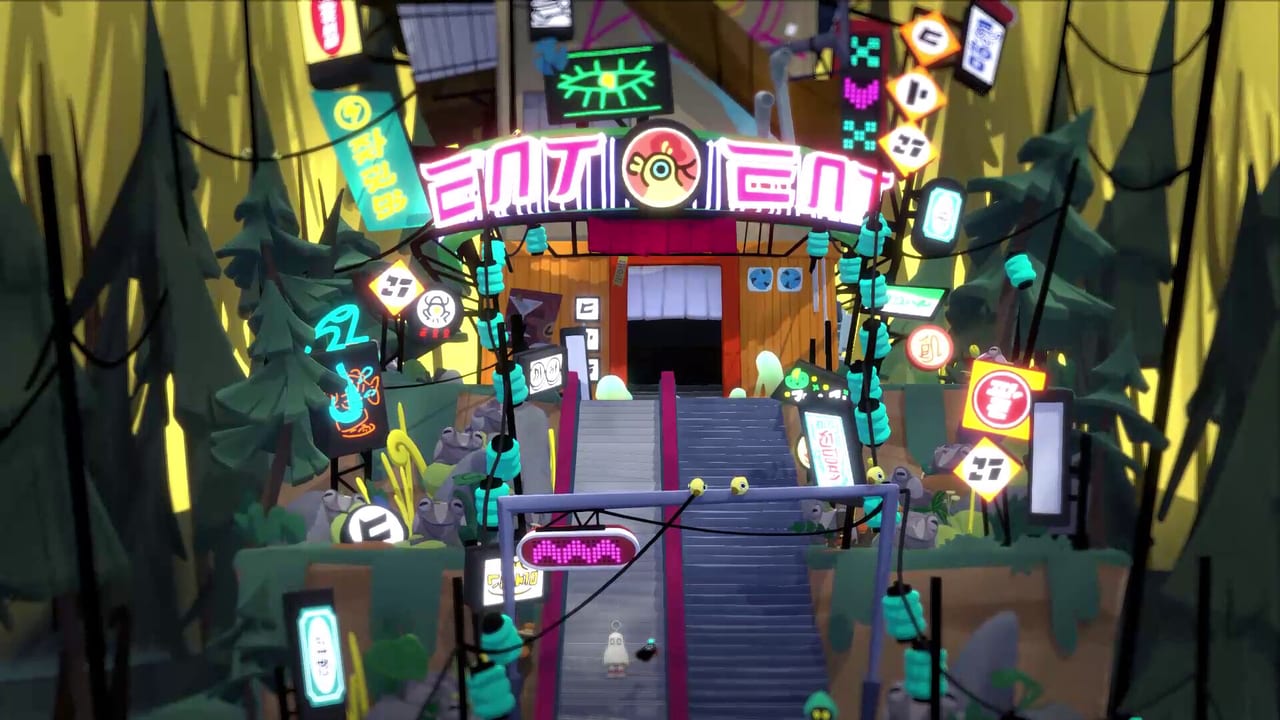
Precise movement matters in Waltz and Jam. Waltz’s craftsman toys and Jam’s shape shifts—Water Ball bounce/splash, Trampoline height, and later forms—reward clean analog input and readable button timing. This page collects what Flyway has confirmed about controllers, modes, and comfort so you can finish the Steam demo and arrive ready for the December 3, 2026 launch on PC, PlayStation 5, and Nintendo Switch 2.
For story context and first-hour goals, pair this article with Getting Started. For stamp and encounter planning, see Bosses and stamps.
Official recommendation: use a controller
Flyway Games states that developers recommend a controller. The free Steam demo advertises full controller support, calling out:
- Xbox controllers
- DualShock over USB
- DualSense over USB
That USB note matters for PlayStation pads on PC: plan on a wired connection unless future patches expand wireless options. On PlayStation 5 and Nintendo Switch 2 retail builds, expect first-party pads to be the natural default; this page focuses on the publicly documented Steam demo guidance while console feature lists finalize closer to launch.
Why pads fit Waltz and Jam
- Analog walk and camera keep hand-drawn ledges readable when Jam springs as a Trampoline.
- Shoulder and face-button clusters make toy swaps and form changes less awkward than stretched keyboard chords mid-bounce.
- Trigger pressure (where supported) often feels better for charged or held puzzle actions than binary key taps.
- Assist mode still benefits from a pad: softer challenge plus smoother aiming beats soft challenge plus imprecise keys.
Keyboard and mouse remain valid for menuing, streaming overlays, or emergency play, but treat pad-first as the intended skill ceiling for Normal mode clears.
Modes that change how controls feel
The demo includes Normal and Assist modes. Assist is not a separate control scheme so much as a comfort layer over the same verbs. Practical advice:
- Learn the default bind set on Assist until Water Ball landings stop surprising you.
- Switch to Normal without rebinding everything; keep muscle memory stable.
- Only then experiment with remaps if the retail PC build exposes them—do not assume every demo option mirrors day-one settings.
If a puzzle room feels unfair, confirm mode, deadzone comfort, and frame rate before blaming the chart.
Suggested pre-session checklist
- Charge or cable your Xbox, DualShock, or DualSense pad; prefer USB for PlayStation controllers on PC as listed.
- Disable conflicting overlay hotkeys that steal bumpers during Jam swaps.
- Set a reasonable TV or monitor game mode to cut lag; puzzle platformers punish display delay.
- On minimum-spec PCs (i5-6500 / Ryzen 3 1200, GTX 1050 / RX 560, 8 GB RAM), cap effects so input stays snappy—see hardware notes in Getting Started.
- Sit for a five-minute bounce drill in the demo before a boss attempt night.
Mapping mindset (no invented glyphs)
Until Flyway publishes a final PC key table for the retail build, avoid memorizing fan-made glyph sheets. Instead memorize verbs:
- Move Waltz with precision near ledges.
- Trigger Jam form changes deliberately—Water Ball versus Trampoline is a route choice, not a panic button.
- Deploy the active craftsman toy as a puzzle answer, then re-center on movement.
- Interact with HQ and station NPCs without sprinting past Low’s guidance.
When official diagrams land, this wiki will update screenshots under the Guides hub. Until then, in-game prompts in the demo are authoritative.
Accessibility and comfort
Assist mode is the headline accessibility option in public demo materials. Combine it with system-level helps:
- Larger OS text or magnifier for menu reading if needed.
- Headphones for audio cues during splash and landing telegraphs.
- Short sessions with stretch breaks—hand-drawn spectacle can hide how long you have been mid-air.
Players chasing every stamp toward the Gate of Judgement should protect their hands; seven realms themed on the Seven Deadly Sins will ask for repeated precision after December 3, 2026.
Platform notes
- PC (Steam): Demo is the live training ground; confirm app 2686570, cloud, and achievements expectations for the full game via Official links.
- PlayStation 5: Release-date trailer messaging confirms the platform; DualSense features in retail may exceed the USB-focused PC demo list—watch Updates.
- Nintendo Switch 2: Same launch window; expect handheld versus docked feel differences for timing-critical Jam launches.
After controls feel good
Return to the Demo guide for opening-hour routing, skim Characters so you know who is speaking while you fumble a bind, and peek at the Toys tier list once more gadgets are public. Controls are the quiet foundation: stamps, bosses, and storybook set pieces only shine when Water Ball goes where you meant.
Frequently Asked Questions
Quick answers about Waltz and Jam, the demo, and launch platforms.
Do the developers recommend keyboard or controller?
Controllers. Flyway recommends a pad, and the Steam demo lists full support for Xbox controllers plus DualShock and DualSense over USB.
Can I use DualSense wireless on PC for the demo?
Public demo notes emphasize DualShock and DualSense over USB. Prefer a wired USB connection on PC unless later patches expand wireless support.
Does Assist mode change the button layout?
Assist primarily eases challenge while teaching the same Waltz and Jam verbs. Learn binds once, then raise difficulty to Normal without scrambling your muscle memory.
Where should I practice inputs?
Install the free Steam demo and use Central Station No.5 spaces as a bounce and trampoline lab before attempting harder demo encounters.